This guide is written to help a buyer install the theme, set it up correctly, and use every page and module without guessing.
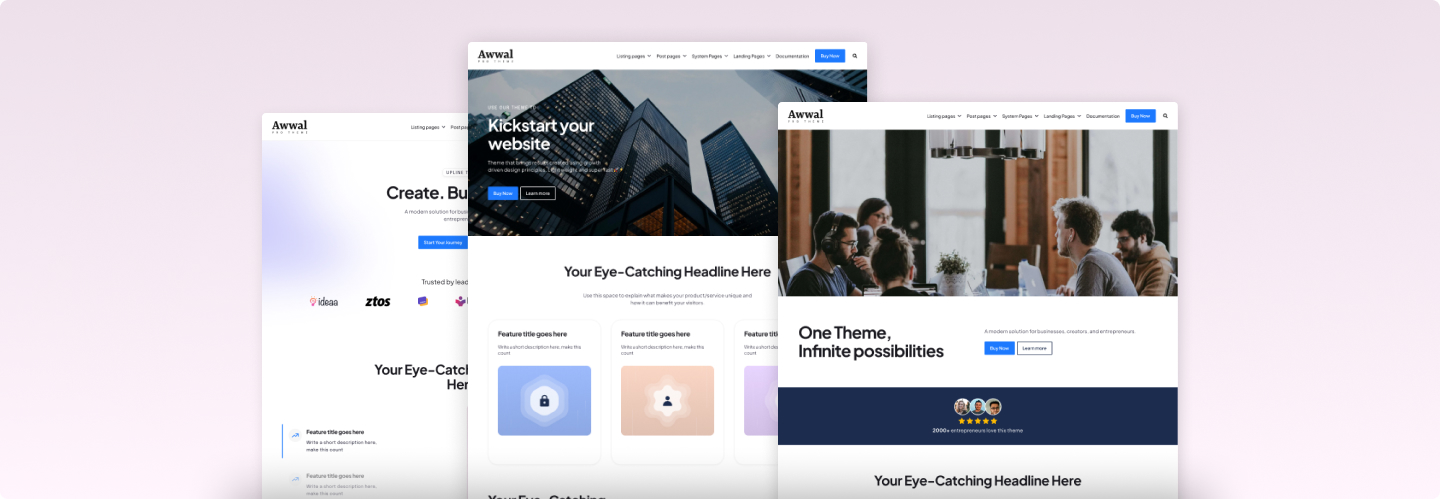
Category: Getting Started
Before You Start
Before working with the theme, make sure you have:
- Access to a HubSpot account that supports themes
- Permission to create and edit pages
- Your brand assets ready:
- Logo
- Colors
- Fonts
- Images
- Copy
-
Forms created in HubSpot if you plan to use contact or landing pages Blog enabled if you plan to use blog templates
Installation & Activation
How to install AD Theme from the HubSpot Marketplace and make it available when creating pages.
Steps
1. Open HubSpot Marketplace and locate AD Theme.
2. Install or purchase the theme, depending on the listing.
3. Go to Marketplace Downloads and confirm the theme appears there.
4. Create a new page in HubSpot.
5. Set AD Theme as the active theme if it is not already active.
6. Choose the page template you want to start with.
Notes
Note: If the theme does not show up first in the template picker, switch the active theme manually.
Note: Installation flow may vary slightly based on your HubSpot portal permissions.
Global Theme Settings
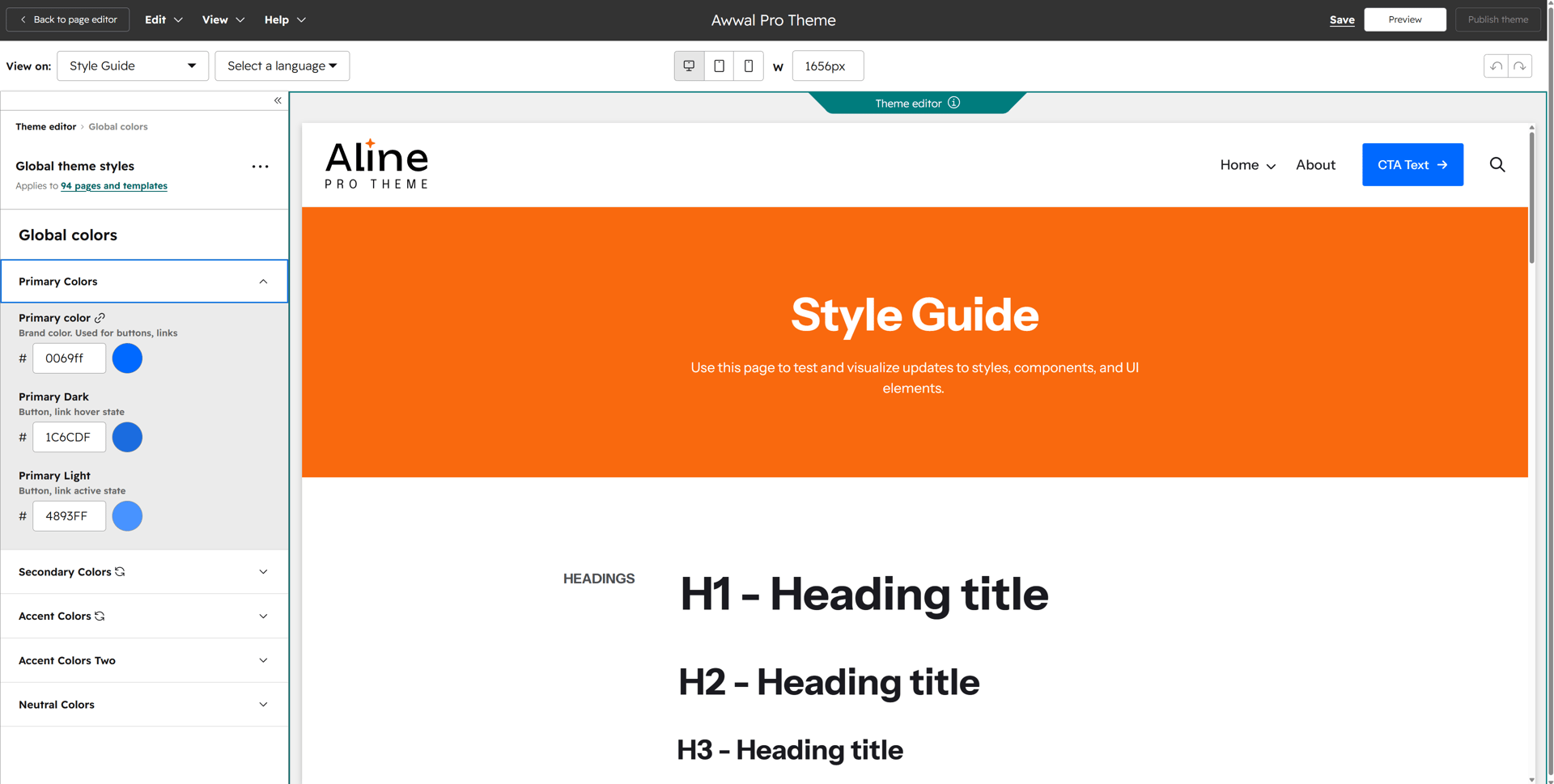
How to set the global visual system before editing individual pages.
Steps
7. Open any page that uses AD Theme.
8. Go to the Theme tab in the left sidebar.
9. Click Edit theme settings.
10. Set brand colors, typography, buttons, spacing, and any available global style controls.
11. Review the preview before publishing.
12. Publish the settings when you are satisfied.
Notes
Note: Publishing theme settings updates every page that uses those global values.
Note: Start here before editing page-level module styling. It saves a lot of cleanup later.
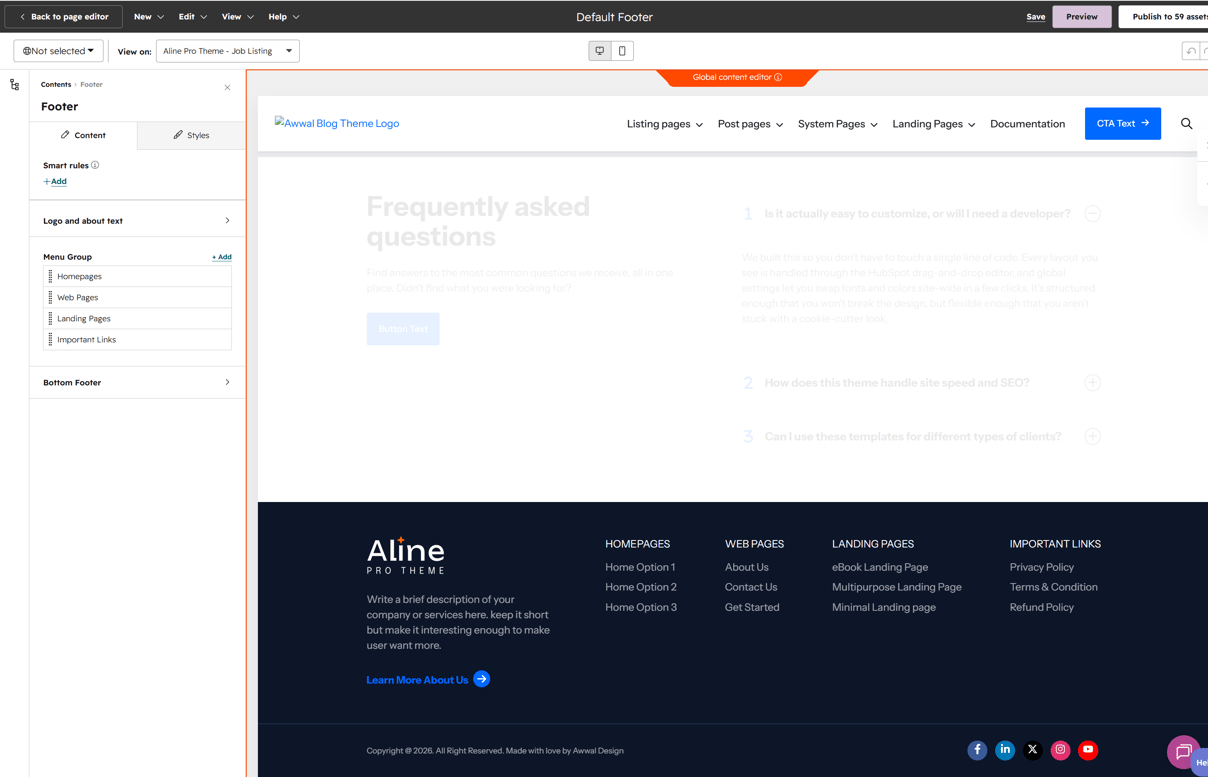
Header & Footer Setup
How to configure the site-wide navigation and footer areas.
Steps
13. Open a page that includes the global header and footer.
14. Edit the header to set the logo, navigation menu, and optional CTA.
15. Edit the footer to set navigation links, company details, social links, and legal links.
16. Review both desktop and mobile behavior.
17. Publish the changes.
Notes
Note: If these are global modules, editing them once updates every page using the same global content.
Note: Keep menu labels short. Long labels usually create layout issues first.
Recommended Setup Order
The fastest order for getting a clean site live without rework.
Steps
18. Install the theme.
19. Activate the theme.
20. Configure global theme settings.
21. Set up the header.
22. Set up the footer.
23. Create the homepage.
24. Create internal pages.
25. Connect forms and menus.
26. Review mobile and SEO settings.
27. Publish.
Notes
Note: This order is simple, but it prevents a lot of repeated styling work.
Category: Page Templates
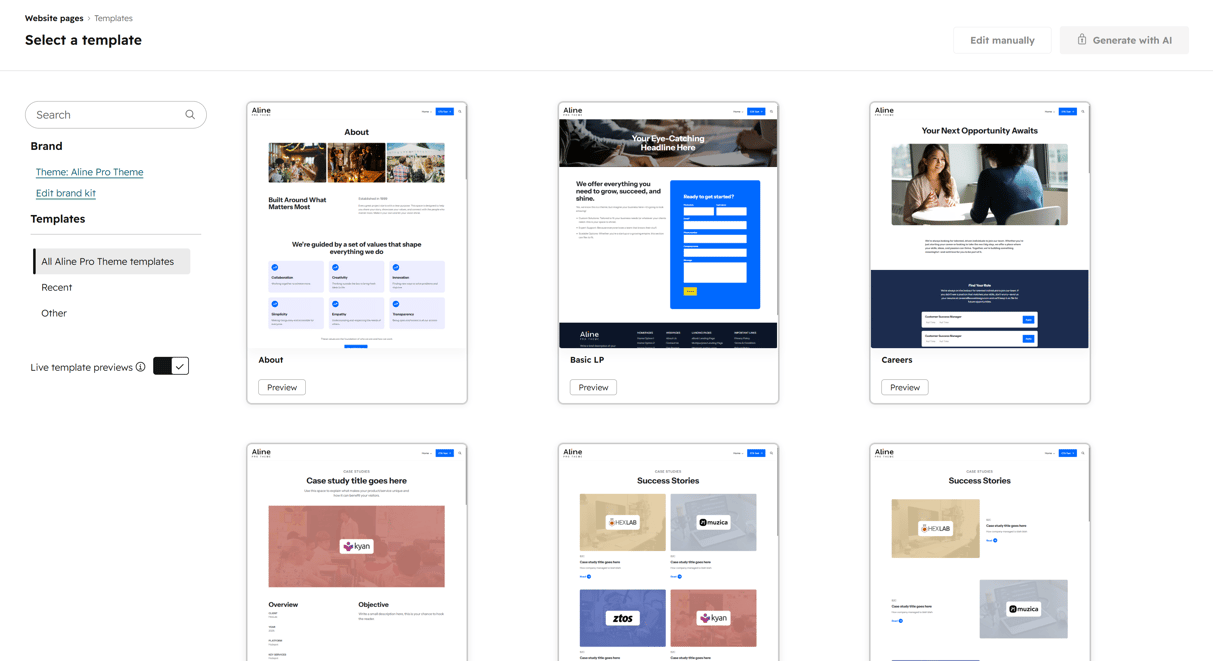
Homepage Layouts
AD Theme includes three homepage variations so buyers can choose the structure that fits their brand best.
Included items / Key points
- Home V1: Primary homepage option for a polished general business site. A balanced layout that works across most use cases without requiring major changes.
-
Home V2: A more expressive, agency-style layout. Uses stronger visual sections and varied composition to give the page more personality.
-
Home V3: A SaaS-focused layout built around product clarity. Structured to highlight features, workflows, and conversion points.
-
Home V4: A flexible, all-purpose layout that brings together the full range of modules and sections. Designed as a neutral starting point with room to shape the page in any direction.
Notes
Note: Choose one homepage as your primary structure, then adapt the others for experiments, internal variations, or campaign use if needed.
Core Company Pages
The main internal pages included for building a complete business website.
Included items / Key points
-
About
-
Features V1
-
Features V2
-
Pricing
-
Services
-
Single Service
-
Team
-
Contact V1
-
Contact V2
-
FAQ
-
Privacy Policy
-
Internal Page
Notes
Note: Internal Page is the flexible fallback template for pages that do not need a dedicated layout.
Case Studies & Portfolio Pages
Templates for showcasing work, projects, or case studies with both listing and detail views.
Included items / Key points
-
Work / Case Studies V1
-
Work / Case Studies V2
-
Case Study Details
Notes
Note: Use one listing page as the main archive and connect every card to the Case Study Details template.
Careers Pages
Templates for company hiring pages and role detail pages.
Included items / Key points
-
Careers
-
Job Listing
-
Job Listing Card Style
-
Job Details
Notes
Note: If there are no open roles, add a simple fallback message instead of leaving the page empty.
Blog Templates
Templates used for the blog index and individual posts.
Included items / Key points
-
Blog listing
-
Blog post
Notes
Note: These must be assigned in HubSpot blog settings before they control your blog output.
Landing Pages & Conversion Pages
Focused templates designed for lead generation and post-conversion experiences.
Included items / Key points
-
Basic LP
-
Simple eBook LP
-
eBook LP
-
Thank You Page
Notes
Note: Keep these pages focused. Remove anything that competes with the main conversion goal.
Utility Pages
Supporting layouts for FAQ, timeline, updates, and other utility content.
Included items / Key points
-
FAQ
-
Timeline / Changelog page
Notes
Note: Timeline / Changelog works well for release notes, milestone history, or company journey content
Category: Module Library
Header & Footer Modules
Core global modules used across the site.
Included items / Key points
-
Header
-
Footer
-
Social_Media_Icons
Notes
Note: These should usually be configured first because they affect the whole site experience.
Hero & Intro Modules
Modules used to start pages strongly and create clear content hierarchy.
Included items / Key points
-
Hero
-
Secondary_Hero
-
Headings
-
Content_Blocks
-
Content_Module
-
Content_Slider
Notes
Note: Avoid overloading hero areas. Clear headline, supporting copy, and one main action is usually enough.
Feature & Marketing Modules
Modules used to explain value, structure information, and move users toward action.
Included items / Key points
-
Feature_Cards
-
Feature_Icons
-
CTA Block
-
Button
-
Icons
-
Social_Proof
-
Company_Logos
Media & Visual Modules
Modules for images, video, galleries, and visual storytelling.
Included items / Key points
-
Video
-
Image_Gallery
-
Photo_Swiper
-
Map
Notes
Note: Keep image sizes consistent inside the same section. Mixed image ratios usually make a module feel unfinished.
Data, Pricing & Comparison Modules
Modules for stats, plans, comparisons, and structured detail.
Included items / Key points
-
Counters
-
Pricing_Cards
-
Detailed_Pricing_Table
-
Progress_Bar
-
Lists
-
Tabbing
Notes
Note: If a pricing table gets too wide, simplify labels before changing layout. Shorter labels solve a lot.
Social Proof, Team & Testimonial Modules
Modules that build trust and add human context to the site.
Included items / Key points
-
Team
-
Testimonials_and_reviews
-
Contact_Icons
Case Study, Careers & Blog Support Modules
Modules that support dynamic content sections and archive-style content.
Included items / Key points
-
Case_Studies
-
Job_cards
-
Job_Detail
-
Latest_Blogs
-
Related_posts
FAQ, Timeline & Utility Modules
Modules for structured FAQs, historical content, and useful support sections.
Included items / Key points
-
Timeline
-
FAQ_Accordion
Form Module
How to connect HubSpot forms to pages inside the theme.
Steps
28. Add the Form module to the page or edit the existing form area.
29. Select the HubSpot form you want to use.
30. Review labels, spacing, and button styling.
31. Set the success behavior or redirect if needed.
32. Submit a real test entry before publishing.
Notes
Note: Always test the form after connecting it. A form that looks right but routes wrong is still broken.
Category: Blog & System Modules
Blog-Specific Modules
Modules that support blog listing pages, blog posts, subscriptions, and post navigation.
Included items / Key points
-
Blog_listing
-
Blog_listing_banner
-
Blog_posts_banner
-
Blog_subscription_box
-
Blog_subscription_section
-
Share_and_next_previous_post
Notes
Note: Keep subscription prompts simple. Good copy usually matters more than adding extra fields.
System Modules
Modules used in search-related system pages.
Included items / Key points
-
Search_result_top
-
Search_results
Notes
Note: Search pages should have a useful empty state. Never leave the user with a blank result view.
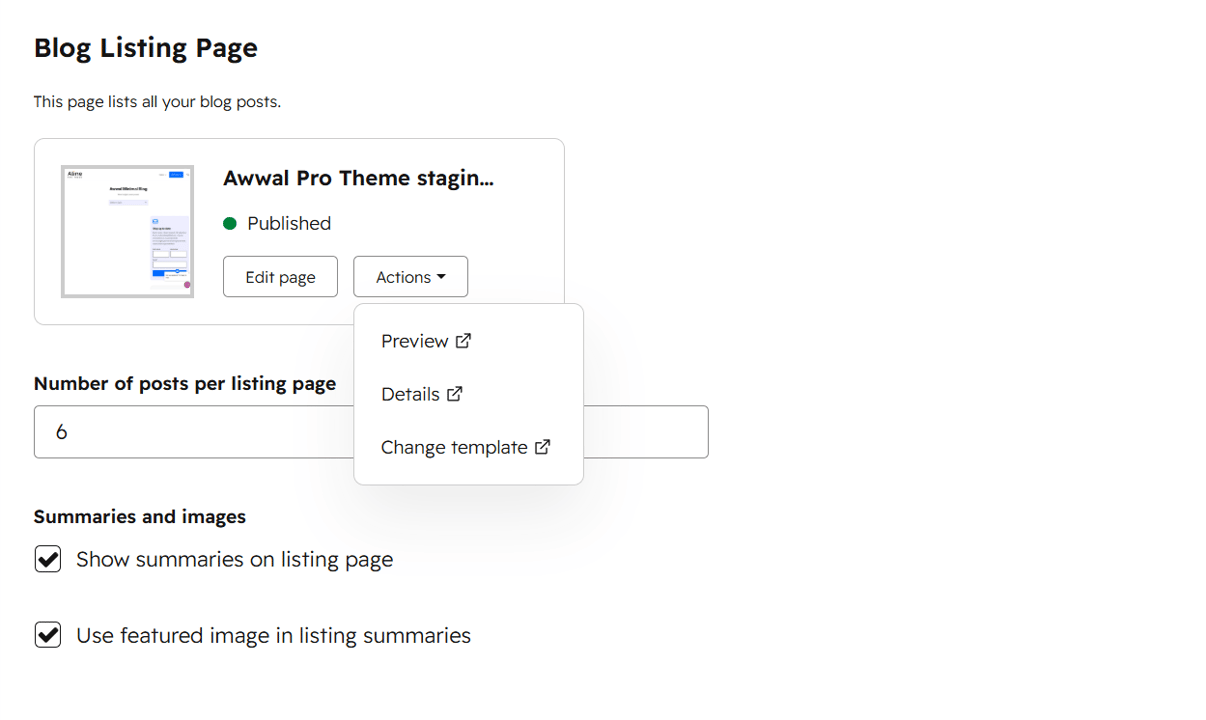
Assigning Blog Templates
How to connect the included blog templates to a HubSpot blog.
Steps
33. Go to HubSpot settings for your blog.
34. Assign Blog listing as the listing template.
35. Assign Blog post as the post template.
36. Save the settings.
37. Review a live post and the blog archive to confirm the templates are applied correctly.
Notes
Note: Template assignment is not complete until you verify it on actual published blog content.
Add image for post page
Category: Site Configuration
Connecting Menus
How to assign HubSpot navigation menus to the header and footer.
Steps
38. Create or review the required menus in HubSpot navigation settings.
39. Open the Header module and assign the primary menu.
40. Open the Footer module and assign secondary or footer menus if used.
41. Review dropdowns and mobile menu behavior.
42. Publish changes.
Notes
Note: Fix long menu labels first before changing header layout.
Image Guidelines
Best practices for cleaner visual consistency and better performance.
Included items / Key points
-
Use clear, high-quality images.
-
Keep image sizes reasonable.
-
Keep image ratios consistent within the same section.
-
Add alt text where possible.
-
Check desktop, tablet, and mobile crops.
Notes
Note: Consistent imagery does more for perceived quality than almost any single styling tweak.
SEO & Social Preview Essentials
Small but important publishing details that should not be skipped.
Included items / Key points
-
Page title
-
Meta description
-
OG title
-
OG description
-
OG image
-
Canonical URL if needed
-
Image alt text
-
One clear H1 per page
Notes
Note: Most visitors never mention social preview setup, but they absolutely notice when it looks broken.
Image placeholders
[INSERT IMAGE OF PAGE SETTINGS / SEO PANEL]
Pre-Publish Checklist
A final review list before making any page live.
Included items / Key points
-
Check page title and meta description.
-
Check H1 usage.
-
Check all buttons and links.
-
Check forms.
-
Check desktop, tablet, and mobile layout.
-
Check that no placeholder text remains.
-
Check images and icons.
-
Check page speed basics such as image weight and unnecessary motion.
Category: Troubleshooting
Theme or Template Not Showing
What to check if the theme or template is missing in the page editor.
Included items / Key points
-
Confirm the theme is installed.
-
Confirm the theme is active.
-
Confirm you are creating the correct page type.
-
Confirm your portal permissions allow access to the theme.
Global Settings Not Updating
What to check if theme setting changes do not appear on pages.
Included items / Key points
-
Confirm the theme settings were published.
-
Confirm the page uses the same theme.
-
Confirm the affected styling is controlled globally, not locally in the module.
Form Issues
What to check if a form is missing or not behaving correctly.
Included items / Key points
-
Confirm the selected form still exists.
-
Confirm the correct form is selected in the module.
-
Confirm the success action or redirect is configured correctly.
-
Submit a test entry to verify the full flow.
Blog Template Issues
What to check if blog pages are not using the expected design.
Included items / Key points
-
Confirm the listing and post templates are assigned in blog settings.
-
Confirm you are checking the correct blog.
-
Confirm the live content is published and accessible.
Mobile Layout Issues
What to check if the layout feels broken on smaller screens.
Included items / Key points
-
Check overly long headings.
-
Check overly long button labels.
-
Check large tables or tab content.
-
Check image dimensions and crop behavior.
Category: Quick Start
Launch a Site Quickly with AD Theme
A simple starting path for buyers who want to get live fast.
Steps
43. Install the theme.
44. Activate the theme.
45. Set colors, fonts, and buttons in theme settings.
46. Configure the header.
47. Configure the footer.
48. Create Home V1.
49. Create About.
50. Create Contact V1.
51. Create Pricing or Services.
52. Connect forms and menus.
53. Review mobile and publish.
Notes
Note: This is the cleanest fast-start path. It gives buyers a usable site without forcing them to build every page on day one.
Appendix: Full Template List
-
Home V1
-
Home V2
-
Home V3
-
About
-
Work / Case Studies V1
-
Work / Case Studies V2
-
Case Study Details
-
FAQ
-
Timeline / Changelog page
-
Careers
-
Job Listing
-
Job Listing Card Style
-
Job Details
-
Blog listing
-
Blog post
-
Contact V1
-
Contact V2
-
Features V1
-
Features V2
-
Pricing
-
Privacy Policy
-
Services
-
Single Service
-
Team
-
Internal Page
-
Basic LP
-
Simple eBook LP
-
eBook LP
-
Thank You Page
Appendix: Full Module List
-
Header
-
Footer
-
Hero
-
Secondary_Hero
-
Headings
-
Content_Blocks
-
Content_Module
-
Content_Slider
-
Feature_Cards
-
Feature_Icons
-
Company_Logos
-
Video
-
Counters
-
CTA Block
-
Button
-
Icons
-
Pricing_Cards
-
Detailed_Pricing_Table
-
Case_Studies
-
Contact_Icons
-
Form
-
Team
-
Testimonials_and_reviews
-
Timeline
-
FAQ_Accordion
-
Image_Gallery
-
Job_cards
-
Job_Detail
-
Latest_Blogs
-
Lists
-
Map
-
Photo_Swiper
-
Progress_Bar
-
Related_posts
-
Social_Media_Icons
-
Social_Proof
-
Tabbing
-
Blog_listing
-
Blog_listing_banner
-
Blog_posts_banner
-
Blog_subscription_box
-
Blog_subscription_section
-
Share_and_next_previous_post
-
Search_result_top
-
Search_results
